
Your permanent-lighting handover checklist
Know what to try, record and clarify after permanent lighting is installed, with a practical homeowner handover sheet for controls, schedules and follow-up.
Request My Free Lighting Mockup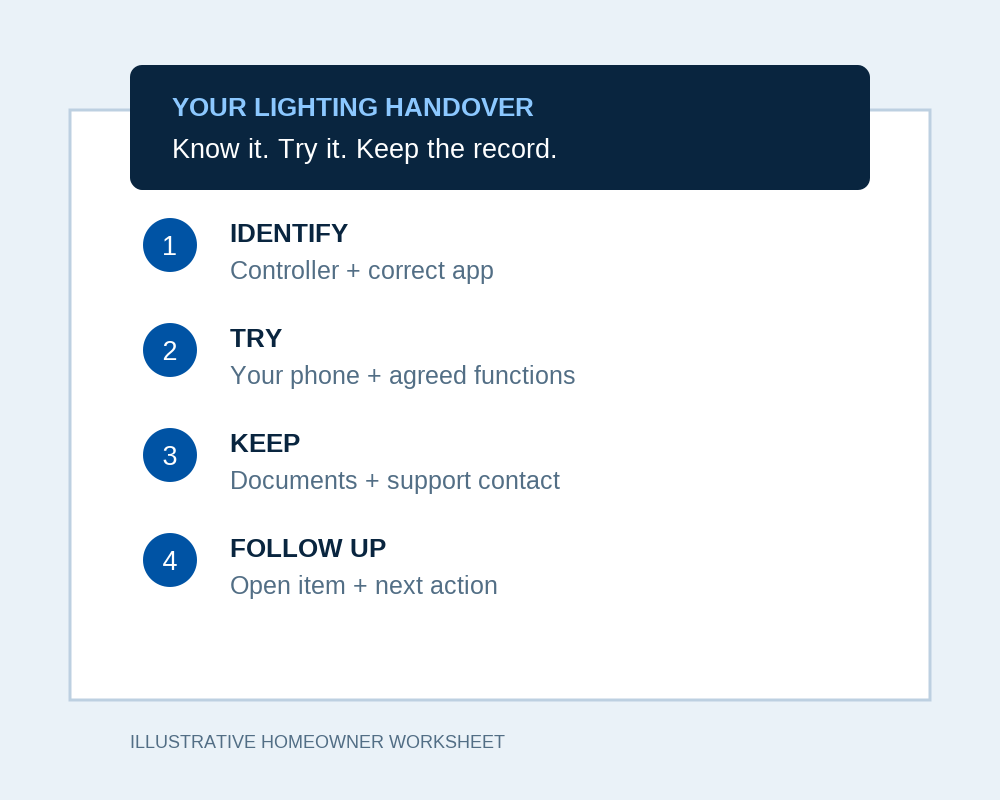
Before the walkthrough ends, operate the agreed lights from your own phone, identify the controller and correct app, confirm a saved schedule, and keep the product and dealer-service documents. Record anything not demonstrated with a named follow-up contact. These are homeowner observations; installation settings and physical work stay with your dealer.
References checked November 16, 2026. Source: Trimlight: Edge app guide and controller-specific operationMatch the walkthrough to your actual installation.
Start with the final drawing or written scope, then walk the property with the installer from ground level. Identify the sections that were included and any agreed changes. Use names you will recognize later, such as front eave, garage return or patio edge, rather than relying on a vague label like main lights.
Have the installer point out the controller and tell you the exact controller family and app used for this job. This guide includes references for compatible Trimlight Edge systems; older controllers or different equipment can use different instructions. Your equipment record should settle that question before anyone downloads an app or follows a tutorial.
Separate what you observed from what still needs a demonstration. A daylight walkthrough can document the installed areas, but it may not answer every question about the nighttime appearance. If another check is needed, record how you will arrange it. Do not climb or open equipment to complete this sheet.
For a compatible Edge controller, use the manufacturer’s current Edge guide alongside the instructions your installer provides.
- Keep the final scope or drawing with the installation date.
- Record the controller family and exact app name; no password or access-code fields.
- Ask which physical areas can be controlled separately on this installation.
Try the everyday controls from your own phone.
A demonstration on the installer’s phone is useful; a supervised turn on your own phone shows whether you can repeat it. Ask the installer to watch while you select the correct controller, turn the lights on and off, choose an agreed saved display and adjust an everyday setting you intend to use.
Confirm that the account and recovery route used for your system are ones you are authorized to access. Keep credentials in your private password manager, not in this worksheet, an installation photo or a support email. Ask how another authorized household member should obtain access for the exact app and system.
Leave output assignments, RGB order and pixel configuration with the dealer. Those installation settings are different from choosing a saved pattern or brightness. If the displayed area or color is wrong, record what happened and ask for help instead of experimenting with configuration values.
The manufacturer also explains compatible phones and household access for Edge. Confirm compatibility rather than assuming every device will work.
| Try together | Record | If not shown |
|---|---|---|
| Select controller | Recognizable name | Ask which unit serves the area |
| On / off | Response observed | Record area and symptom |
| Saved display | Name you can find again | Request one demonstration |
| Everyday setting | Control you can repeat | Ask for matching instructions |
Mark each function as Observed, Not yet shown or Follow-up needed. Keep any unfinished demonstration on your open-item list.
Leave one schedule you understand.
Choose one ordinary display to review at handover. For a compatible Edge system, confirm the saved pattern, selected days, on and off times, and Timer Mode. Trimlight’s scheduling instructions explain that saving a schedule and leaving the controller in the correct mode are separate checks.
Write down the intended result in plain language—for example, which display should run and when it should stop. Have the installer show where that information is saved. If the scheduled event cannot be observed during the appointment, record it as a later check rather than claiming it has already run.
If remote control is part of your agreed setup, ask for a separate demonstration. For Edge, that feature depends on the controller’s home-network connection and internet or cellular access on your phone. Successful control while standing beside the installer does not, by itself, establish access from elsewhere.
Reference: Edge timers and scheduling.
For the connection requirements, see Trimlight’s remote-control explanation.
Keep the product and service documents together.
Save the product description, applicable warranty document, installation invoice and dealer contact in one place. The manufacturer publishes product-specific warranty terms and distinguishes product coverage from dealer labor. Ask for the actual written terms that apply to your equipment and installation.
Write down whom to contact for an app question, a physical lighting issue or a service visit. Ask whether any visit or labor charge needs approval before a booking. Do not treat the phrase lifetime product warranty as a promise that every future visit, connection issue or labor charge is free.
Trimlight’s registration page currently asks for completion within 30 days of installation. Ask who is responsible, whether it has already been submitted and what confirmation you should retain. Use the current product instructions for your job rather than assuming that filling out this checklist registers anything.
Keep the manufacturer’s product and dealer-labor information with your own installation documents.
Check the current Trimlight registration instructions and retain the actual confirmation when completed.
Complete your homeowner handover record.
Copy the following headings into a note or print the guide. Keep the record somewhere you can find without opening the lighting app. For each blank item, write Not yet confirmed and identify the next person to ask; a blank field should not turn into an assumed answer.
Do not put passwords, recovery codes, Wi-Fi credentials or a full property address on a sheet you plan to share. A project reference and area names are enough for an initial follow-up conversation.
| Item | Keep | Next step |
|---|---|---|
| Installed areas | Final scope / drawing | Clarify changed areas |
| Equipment | Controller + app name | Ask installer to identify |
| Account access | Authorized owner confirmed | Agree access handoff |
| Controls | Functions you repeated | List not-yet-shown items |
| Schedule | Display + days + times | Arrange later observation |
| Remote access | Shown / not in scope / pending | Confirm agreed setup |
| Documents | Product + dealer terms | Request exact copies |
| Register | Responsible person + receipt | Confirm current deadline |
| Support | Contact + next action | Agree who responds |
Original Bulldog homeowner worksheet. Record only what was actually demonstrated or provided. Your written installation agreement remains the source for the agreed project scope.
Give every unfinished item a clear next step.
Keep an open-item note short: the area or function, what you observed, the agreed next action and the responsible contact. Add a date only when someone has actually agreed to it. A useful record is specific enough that the next person can continue the conversation without repeating the whole walkthrough.
For example, a hypothetical handover could record: Garage return; local on/off shown, remote access not yet demonstrated; installer to confirm the agreed network setup and arrange a check. That is a sample note, not a report of a Bulldog customer installation or a promised response time.
For an installed system that needs help, start with the servicing dealer named in your documents. If you are still planning a new project in Bulldog’s covered Houston-area ZIPs, request a free lighting mockup and ask how the proposed equipment, setup and walkthrough would fit your home. Bulldog Home Services offers lighting through Bulldog Signature Lighting, LLC, an authorized Trimlight dealer.
Still choosing a project scope? Start with what belongs in a permanent-lighting quote.
If roof or gutter work is part of the job, use the separate construction-coordination guide before scheduling the crews.
Good questions. Clear next steps.
Should I be able to use my own phone at the walkthrough?
Ask to repeat the normal controls on your own compatible device with the installer present. Confirm the correct app, controller and authorized account access. A demonstration on another person’s phone does not show that your access is ready.
Does controlling the lights at home prove remote access works?
No. If remote access is in your agreed setup, ask for it to be demonstrated separately. For compatible Edge systems, the controller needs its home-network connection and your phone needs internet or cellular service.
Why can a saved schedule still fail to run?
For compatible Trimlight Edge systems, the saved days and times must be correct and the controller must be in Timer Mode. Have the installer confirm the setup for your controller rather than using an unrelated app tutorial or changing installation settings.
Can every section of my roofline be controlled separately?
Do not assume so. Ask the installer to identify the areas supported by your actual wiring and controller configuration. Record the available behavior; leave output and pixel configuration to the dealer.
Does a lifetime product warranty include every service visit?
Do not assume every visit or labor charge is included. Keep the specific product warranty and dealer labor/service terms together, and confirm potential charges before arranging service.
What if something has not been demonstrated before the installer leaves?
Record the missing demonstration or unresolved item, the responsible contact and the next agreed action. Keep it marked pending until it is actually checked. Do not attempt physical repairs or change unfamiliar installer settings to close the item yourself.
Sources & further reading
Primary references for the facts cited in this guide. Provider requirements and published prices can change.
Plan a lighting system you can enjoy using.
Planning a new installation in our covered Houston-area ZIPs? Request a free Bulldog lighting mockup and discuss the design, proposed equipment and setup with our team. Coverage and project details are confirmed for your address.